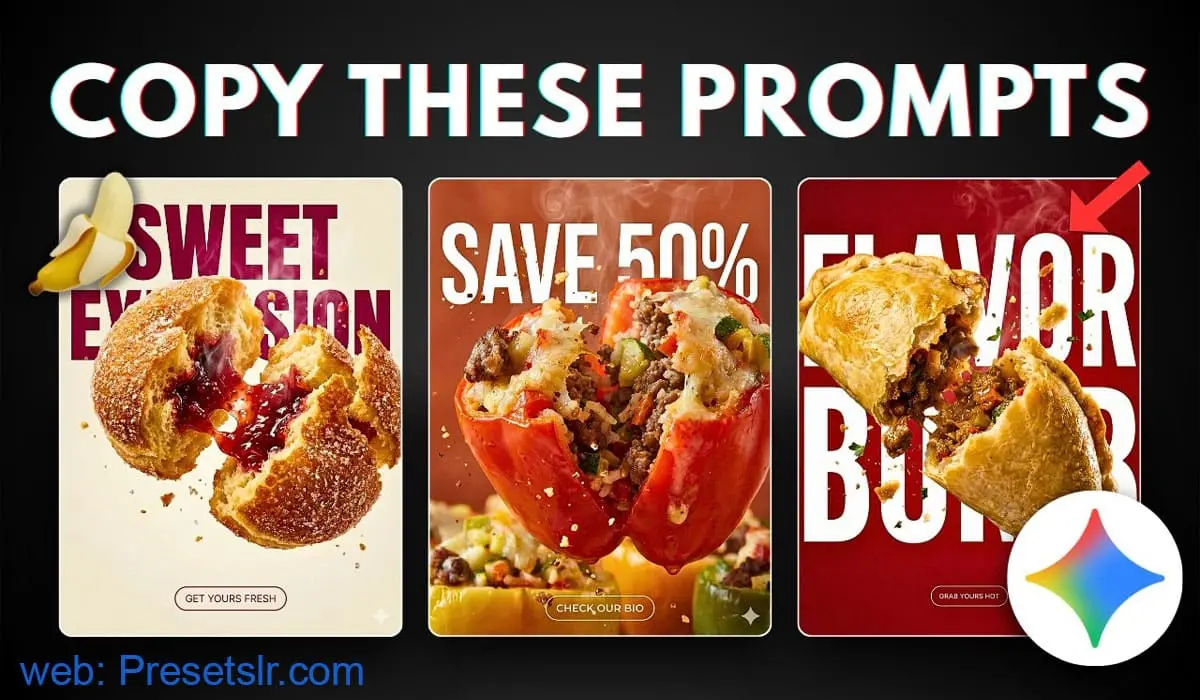
Food photography has always been one of the most High Engaging Step for Grow restaurants, cafés, bakeries, and food brands. But in today’s social-media-driven world, good food photos are no longer enough. You need scroll-stopping visuals — images that fastly grab attention, cravings, and convert viewers into customers.
One of the most eye-catching trends right now is food explosion product photography — visuals where a dish is cracked, or broken open mid-air, with fillings bursting out, steam rising, crumbs suspended, and dramatic lighting adding depth and texture.
In this blog, you’ll learn:
how to create food or dish food explosion effect using gimini AI prompt Free
How restaurants and cafés can use it for marketing
How to create this effect using Gemini AI Prompt Without Editing Skill
The exact prompts you can copy and customize
Gemini AI Prompt For This Food Explosing Mid for high tasty visual photography prompt
Food explosion product photography is a visual style where a dish appears to be:
Torn open, Broken apart, Pulled from the center, Split mid-air, …with fillings, sauces, crumbs, steam, and ingredients bursting outward in motion.
Examples include:
A stuffed bun splitting open with jam flowing out
Performs extremely well on Instagram, Facebook, and ads
Why This Marketing Style Works So Well for Restaurants & Cafés
If you sell food with fillings, layers, or stuffing, this technique is perfect for you.
Ideal for: Restaurants, Cafés, Bakeries ,Cloud kitchens, Dessert brands, Home-based food businesses best photography AI image prompt
Why it converts:
Customers want to see the inside
Motion increases attention retention
Premium visuals increase Restaurents Food value
Perfect for posters, reels, ads, and thumbnails
And with Gemini AI, you don’t need:
❌ A studio
❌ A DSLR camera
❌ A food stylist
❌ Editing skills
What You Need Before Starting
Before opening Gemini, make sure you have:
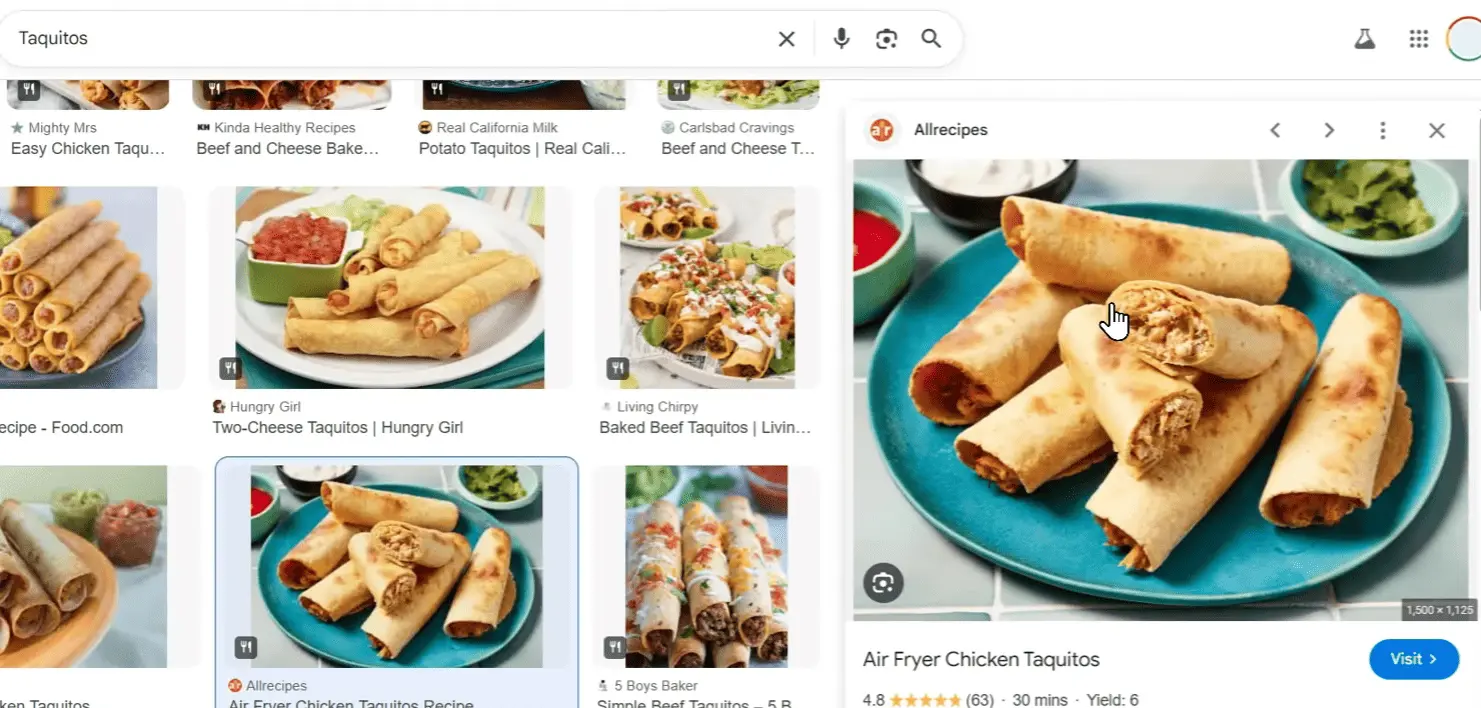
1. A Clear Product Photo
Use a photo where:
The food is visible clearly
Fillings or stuffings can be seen
Lighting is decent
The product is not overly blurry
Important:
AI does not know your ingredients. If the fillings are not visible, Gemini may guess incorrectly.
2. Gemini AI (Desktop or Mobile App)
You can use: Gemini on desktop (recommended)
Gemini mobile app
Step-by-Step: How to Create Food Explosion Images Using Gemini AI
Step 1: Open Gemini AI
Go to Gemini and log in. You can use:
Desktop browser
Mobile app
Both work the same for this process.
Step 2: Upload Your Food Image
Click the “+” (plus) button
Select Upload files
Choose your food photo
Paste or upload it into the chat
This image will be the base reference.
Step 3: Use Prompt 1 – Create the Food Explosion Effect
This first prompt is only for transforming the food image.
It does NOT add text, headlines, or CTA.
Copy and paste the following prompt into Gemini 👇
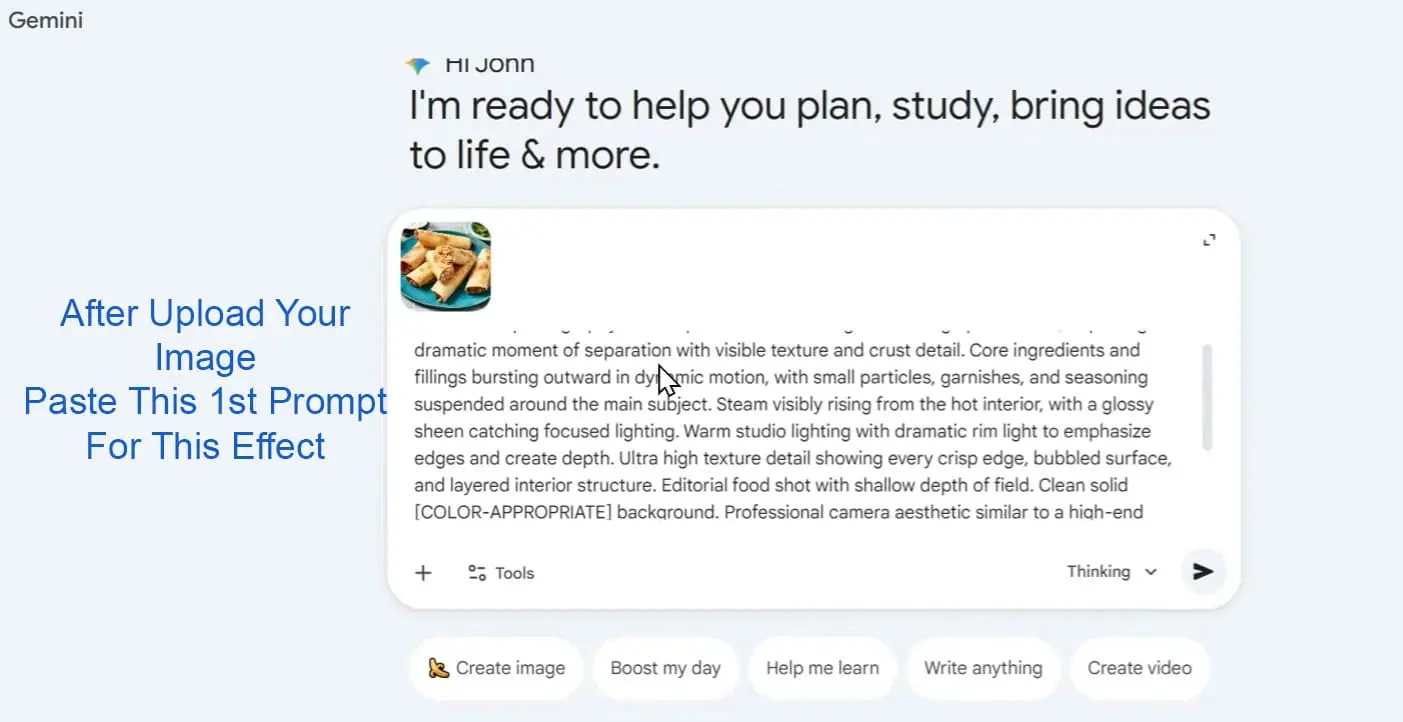
🔥 Prompt 1
(Food Explosion Photography Effect
Macro food photography of the uploaded dish tearing or breaking open mid-air, capturing the dramatic moment of separation with visible texture and crust detail. Core ingredients and fillings bursting outward in dynamic motion, with small particles, garnishes, and seasoning suspended around the main subject. Steam visibly rising from the hot interior, with a glossy sheen catching focused lighting. Warm studio lighting with dramatic rim light to emphasize edges and create depth. Ultra high texture detail showing every crisp edge, bubbled surface, and layered interior structure. Editorial food shot with shallow depth of field. Clean solid [COLOR-APPROPRIATE] background. Professional camera aesthetic similar to a high-end mirrorless body with a 105mm macro lens, fast shutter speed to freeze motion perfectly, hyper-realistic detail down to individual crumbs and droplets. Natural color palette matching the authentic appearance of the dish with emphasis on appetizing golden browns, rich filling colors, and fresh ingredient hues. [3:4] aspect ratio for vertical composition.)
Customization Options:
[COLOR-APPROPRIATE]
Leave it as is, or background change to:
Black, White, Red, Yellow, Green, Blue, Purple You Choose Any Colour For Background
Step 5: Generate & Review the Image
Click Send and wait ~30 seconds.
You’ll get:
A professional food explosion image
No text yet
After Generating Your Image And Paste This 2nd Prompt For Add Background Text For Branding
High detail and motion
If you don’t like the result:
Click Redo
Gemini will generate a different version
Step 6: Use Prompt 2 – Add Headline & CTA Text
Paste This 2nd Prompt After generating your food explosion image then paste 2nd prompt for Add TEXT
Once you’re happy with the image, it’s time to turn it into a marketing poster.
This second prompt adds:
Headline text
CTA button
Poster-style layout

✨ Prompt 2: Add Text & CTA
(Add bold, product-appropriate, eye-catching bold sans-serif [color-appropriate] text that says “Headline” in the background with no shadow, where the main subject partially blocks part of the text. Be sure to provide sufficient margin to the edges and appropriate sizing as well. Include a tiny minimalist call-to-action message like “CTA” inside an outline rounded-corner button at the bottom of the picture.)
Customize:
Replace “Headline” with: your text
Sweet Explosion, Flavor Bomb, Save 50%, Crunchy Filling, Flavor Burst

Replace “CTA” text with:
Order Now, Grab Yours, Check Our Bio, Roll With It, Get Yours Fresh
Text color:
White (most common), Black, Brand color
Step 7: Generate Final Poster
Send the prompt and wait. Poster-ready design
Downloading & Using the Image
Once generated:
Click the download button
Get the full-resolution image
Ready to post on: Instagram
Final Thoughts
Read Full Blog For Perfect Learning AI Prompts And AI Engineering Method Easily
Food explosion product photography used to be expensive, complex, and time-consuming. With Gemini AI and the right prompts, anyone — from small cafés to and restaurants Instagram photos easily create dish image with this gimini AI image prompt free — can now create professional, high-impact food marketing visuals in minutes.
If you sell food with:
Fillings, Layers, Stuffings, Sauces, Crunch
…this technique is a game-changer for your marketing.
Copy the prompts, experiment with your products, and start creating visuals that make people hungry before they even read the caption.
food explosion product photography that I just made with the help of Gemini AI. So if you’re running a restaurant or a cafe business and you happen to sell some food products with fillings or stuffings, then I guess you can use this marketing style to market your product on the instagram, especially on social media. So let me show you how you can create a picture like this based on your own product with the help of Gemini AI. First let’s open Gemini. And here I’m just using the desktop version but you
can also use the Gemini app on your phone to create the picture. And after that you can click the plus button, click upload files and you can select the photo that you want to process. Now, in this case, for this example, I’ll use the a picture of these. And I do recommend to make sure that the fillings or stuffings are visible because AI doesn’t know what exactly you have in your ingredients. So, make sure that you are providing enough information to extrapolate to actually generate a more
accurate picture. So, this is the picture that I’m going to use. Let me just copy it. And you can right click and then paste that on Gemini. Now after that you can copy and paste this prompt onto Gemini. So this is the prompt that is available in the description down below. You can copy it. Now let me just paste that on Gemini. So on this prompt there are two things that you are free to customize. You can select the background color for the picture. Now by default it will choose the most appropriate or the most relevant color
based on your food products. So that’s why I’m using color appropriate instruction here. But you can use a different color like black, red, white, yellow, green, blue, purple, etc. Now down here you have the option to choose the aspect ratio or the dimension of the picture. Now I’m using 3×4. And after that, when you’re done with all of the settings and the prompt, you can click tools, enable the image generation feature on Gemini, select either thinking or probe because these two
versions will call Gemini not a banana pro whereas the fast option will just use the regular banana, which is fine, but not the best model. So, make sure to to use thinking or pro. You can send a message and just wait for the result. Now I think I have to mention that this is not going to immediately create a picture like this. That’s actually only creating this picture without a text. So the text will come later after the second prompt. Uh this first prom will only turn this food product into a sort
of professional food explosion product photography which is actually look pretty good but it is not going to add some headlines, taglines or CTA into the poster design. Okay, there you go. So we got this picture now. I think it looks quite decent but if you don’t like it there is always this redo button. So you can tell I to do it one more time and usually you can get a very different result. But let’s just roll with this one. Now, this is the second prompt that you can send. And again, it is going to
be available in the description down below. So, let me just paste the text right here. Now, I can select the color for the text. That is optional, but again, I’m going to use white. So, you can add a headline. This is going to be a big text that will appear at the top of the design. So, let’s call this one uh maybe a crunch crunchy feeling or something like that. I don’t know. And down here, you can select the CTA. So, I want to use roll with it. There we go. Let’s use the same settings again. Send a message. And we
have to wait for another 30 seconds for AI to edit that picture. So, just wait. And I guess I’ll just skip a show the final result. Okay. So, this is the result that I got. I think that’s quite decent. And again, if you don’t like it, there’s always the option to redo the image generation. But if if you do like it, then you can click this dollar button to get the full resolution of of the picture and maybe you can post it on social media. Perhaps one thing that I guess you want to
remove is this watermark. And there are many ways you can remove this. You can use Canva, Photoshop and it is also possible to to use Gemini to remove the watermark that was created by Gemini. I actually made some videos about that. You can check it out on my channel. So that’s basically it. That’s how you can create a professional look marketing campaign that shows a food product explosion using Geminina AI.