How to Create a Logo in Canva or with AI Without Using Photoshop (Complete Guide)
Table of Contents
Introduction
Why You Don’t Need Photoshop for Logo Design
Understanding Logo Design Basics
Getting Started with Canva
Creating a Free Account
Navigating the Interface
Using Logo Templates
Step-by-Step: How to Create a Logo in Canva
Using AI Tools for Logo Design
Benefits of AI Logo Generators
Best AI Logo Makers
Step-by-Step: How to Create a Logo Using AI Tools
Canva vs AI Tools: Which Should You Use?
Tips for a Great Logo Design (No Design Skills Needed)
Common Mistakes to Avoid
Exporting and Using Your Logo
Free vs Paid Options
Final Thoughts
1. Introduction
In today’s digital-first world, every brand needs a logo. Whether you’re starting a small business, launching a YouTube channel, creating a blog, or even selling handmade products online—your logo is your brand’s first impression.
But what if you don’t have access to Adobe Photoshop or the skills to use it?
Good news: you don’t need Photoshop. Tools like Canva and AI-based logo generators make it incredibly easy for anyone—regardless of design experience—to create stunning, professional-looking logos in minutes.
This guide will walk you through everything you need to know about creating a logo using Canva or AI tools, without any prior design knowledge.
2. Why You Don’t Need Photoshop for Logo Design
Photoshop is a powerful tool, but it’s not always necessary, especially if:
You don’t have experience with graphic design software.
I have Many Tips for logo design without photoshop easy steps.
Online tools like Canva and AI-powered platforms offer drag-and-drop features, templates, fonts, and icons to make logo design fast and user-friendly. They also include free versions, making them perfect for startups and individuals.
3. Understanding Logo Design Basics
Before jumping into designing, it’s important to get familiar with what makes a logo truly effective. Here are a few key principles to keep in mind:
Simplicity: The best logos are clean and straightforward. They’re easier to remember and work well across different platforms.
Relevance: Your logo should reflect your brand’s identity—whether it’s the industry you’re in or the message you want to convey.
Versatility: A great logo works everywhere—from your website to business cards to social media profiles.
Timelessness: Avoid trendy designs that may not age well.
Scalability: It should look good sharp on both small and large screens.
Popular logo types include:
Wordmark (e.g., Google)
Lettermark (e.g., IBM)
Brandmark/Symbol (e.g., Apple)
Combination Mark (e.g., Adidas)
Emblem (e.g., Starbucks)
4. Getting Started with Canva
Creating a Free Canva Account
Visit google and search canva website.
Sign up with your email, Google, or Facebook account.
Choose your use case (e.g., personal, business, student).
Navigating the Interface
Once logged in:
Search Bar: Search for “Logo”
Sidebar: Access templates, uploads, elements, and text.
Canvas: Where you’ll design your logo.
Using Logo Templates
Click “Logo” to see thousands of customizable templates.
Use the filter options to choose by style, theme, or industry.
You can start from scratch or customize a template.
5. Step-by-Step: How to Create a Logo in Canva
Step 1: Choose a Logo Template
Search for a template that aligns with your brand (e.g., modern, elegant, minimal).
Step 2: Customize the Text
Replace placeholder text with your brand name.
Try different fonts from the “Text” tab (tip: stick to one or two fonts max).
Step 3: Modify Colors
Click any element to change colors.
Use your brand colors (or explore Canva’s palette suggestions).
Step 4: Add or Remove Icons
Search “Elements” for relevant icons.
Example: If you’re starting a baking blog, search for “cupcake” or “whisk”.
Step 5: Adjust Layout and Size
Align text and icons properly.
Use Canva’s guides for spacing and symmetry.
Step 6: Download Your Logo
Click “Share” > “Download”
Choose PNG for high quality (SVG for Pro users).
Select “Transparent Background” (Pro feature) if you need it overlayed on other images.
6. Using AI Tools for Logo Design
AI logo generators use machine learning to create logos based on your input. You describe your brand, and the AI does the design work.
Benefits of AI Logo Generators
Super fast (logos in under 5 minutes)
No design experience required
Many provide free previews
Customizable after generation
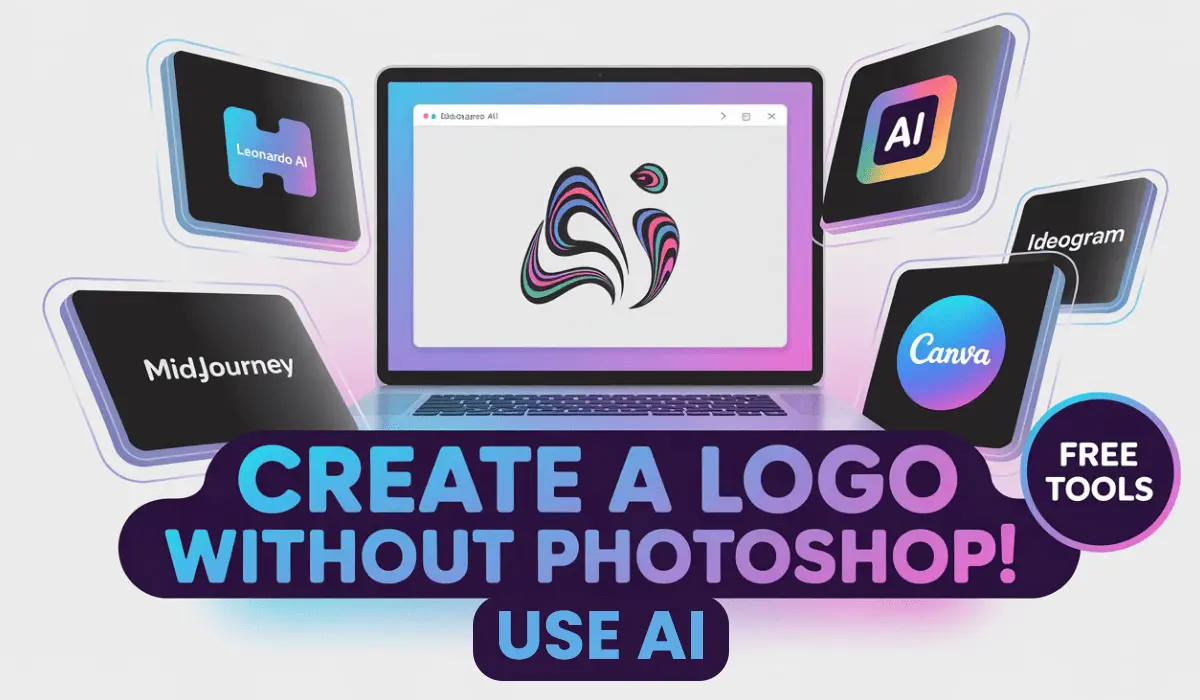
How to create logo with AI: Best Ai websites for Logo Design Free
1. IDEOGRAM : Search on google ideogram and open website: Create your logo with your Imagination Prompt. login in Ideogram Website And Enter Your Logo Prompt And Generate Your Logo Ideogram generate free logo Show your imagination Prompt 4 Logo Choose Your Favourite Logo And Simply Download Your Logo.
how to create a logo prompt with ChatGPT AI:
How to create a logo prompt with ChatGPT AI, describe your brand Identity clearly. Include details like name, industry, style (modern, minimal, vintage), and describe colors or symbols. Example: “Design a modern tech logo for ‘Your Logo Name’ using blue tones and describe your icon for logo icon.” The more specific, the better the result. and enter in chatgpt and you recieved your prompt free and copy your prompt and paste in Ideogram AI
Best AI Logo Makers (Free & Paid)
Looka – Beautiful, brand-ready logos.
Wix Logo Maker – Free to try; full brand kit available.
Tailor Brands – Uses your brand personality.
LogoMakr – Great for DIY logo building.
Hatchful by Shopify – 100% free and simple.
DesignEvo – Has 10,000+ templates.
7. Step-by-Step: How to Create a Logo Using AI Tools
Let’s take Looka as an example.
Step 1: Go to Looka .com
Click “Get Started”
Step 2: Enter Your Brand Name
Type the name you want on the logo.
Step 3: Choose Your Industry
Select your niche (e.g., Food, Education, Tech)
Step 4: Pick a Style
Choose from styles like Bold, Elegant, Playful, Classic, etc.
Step 5: Select Logo Icons
Choose symbols that match your brand.
Step 6: Let the AI Generate Designs
Browse through auto-generated options.
Click on any design to customize.
Step 7: Customize & Download
Change fonts, colors, layouts.
Download in various formats (may require payment).
8. Canva vs AI Tools: Which Should You Use?
Feature Canva AI Logo Makers
Ease of Use Very easy Extremely easy
Customization High Moderate
Templates Thousands Auto-generated
Skill Required Minimal None
Best For DIY users who want control Quick, no-fuss logos
Free Options Yes (limited) Yes (some generators)
Recommendation:
Use Canva if you want creative control.
Use AI tools if you need a fast, decent logo with minimal effort.
9. Tips for a Great Logo Design (No Design Skills Needed)
Know Your Brand Personality
Is your brand fun, formal, bold, or minimalist?
Stick to 2-3 Colors Max
Use contrast, and consider color psychology.
Avoid Clutter
A simple design is easier to recognize.
Use Readable Fonts
Fancy fonts are tempting, but clarity wins. Like poppins roboto etc.
Think of Where It’ll Appear
Social media, websites, business cards—all need to look good.
Test with Others
Show your logo to friends and get honest feedback.
10. Common Mistakes to Avoid
Too Many Fonts or Icons
Using Copyrighted Images
Choosing Trendy Designs That Date Quickly
No Transparent Background
Overcomplicating the Design
Avoiding these mistakes helps your brand appear more professional.
11. Exporting and Using Your Logo
Once your logo is ready:
Exporting from Canva
Choose PNG or SVG.
Select “Transparent Background” for flexibility (Pro feature).
Using Your Logo
Upload to your website header.
Use on social media profile pictures.
Add to your business cards or packaging.
Create a brand kit for consistent branding.
How to Upscale Hd Logo Free:
search on google remaker upscale website and open remakerupscaler and Upload your logo image and click upscale button and download upscale your logo and use everywhere this logo.
how to vectorize your logo:
search on google search keyword “jpg to vector online” and open website upload your logo image and convert to vector free and download your logo image in vector file. Enjoy your logo in vector format.
How to Transparent your logo image free online:
Type google search remove.bg and open website and upload your logo jpg image and convert to transparent png free and download your png transparent logo
( Important Note: This website allows free use of only one image conversion to transparent PNG. However, it’s still an easy and effective way to convert your logo to a transparent background for free.)
13. Final Thoughts
Creating a professional-looking logo without Photoshop has never been easier. Whether you go with Canva’s drag-and-drop tools or AI-based logo generators, you can have a logo ready within minutes—even if you’ve never designed anything before.
The key is knowing your brand, choosing the right tool, and keeping your design clean and relevant.